Searchsearch-field
Narrows Collection by name, set, number, or artist.
The placeholder lists those four fields. Clear the text to stop filtering on it.
 Scott's TCG Binder
Collection is the list of cards you own. It can be a grid or a table, and a selected card stays open in the inspector.
Collection is the list of cards you own. It can be a grid or a table, and a selected card stays open in the inspector.
Mac
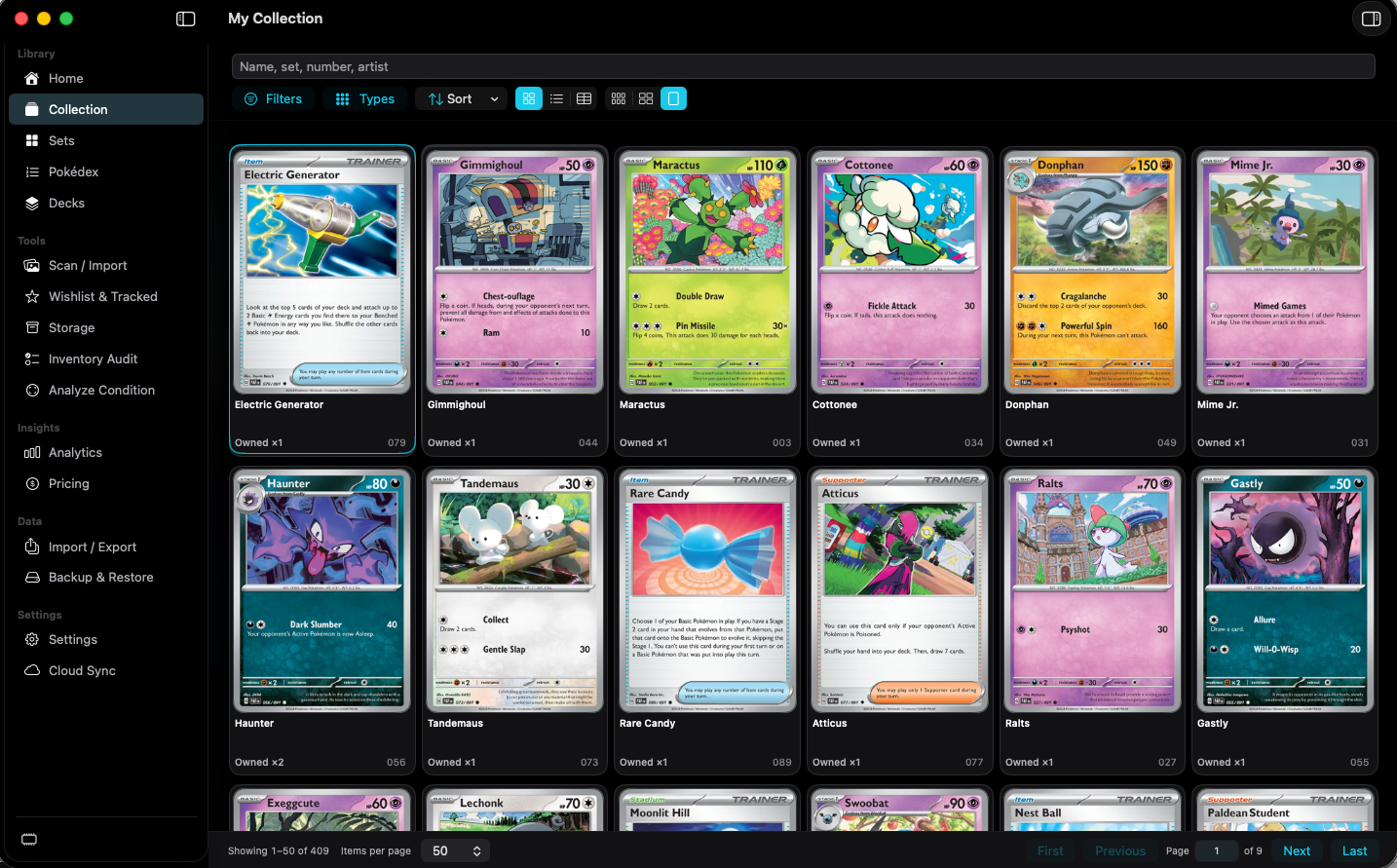
shot desktop-collection-grid · seq 2 · assets/screenshots/original/desktop/0002.png
iPhone
shot iphone-collection · seq 102 · assets/screenshots/original/iphone/collection.png
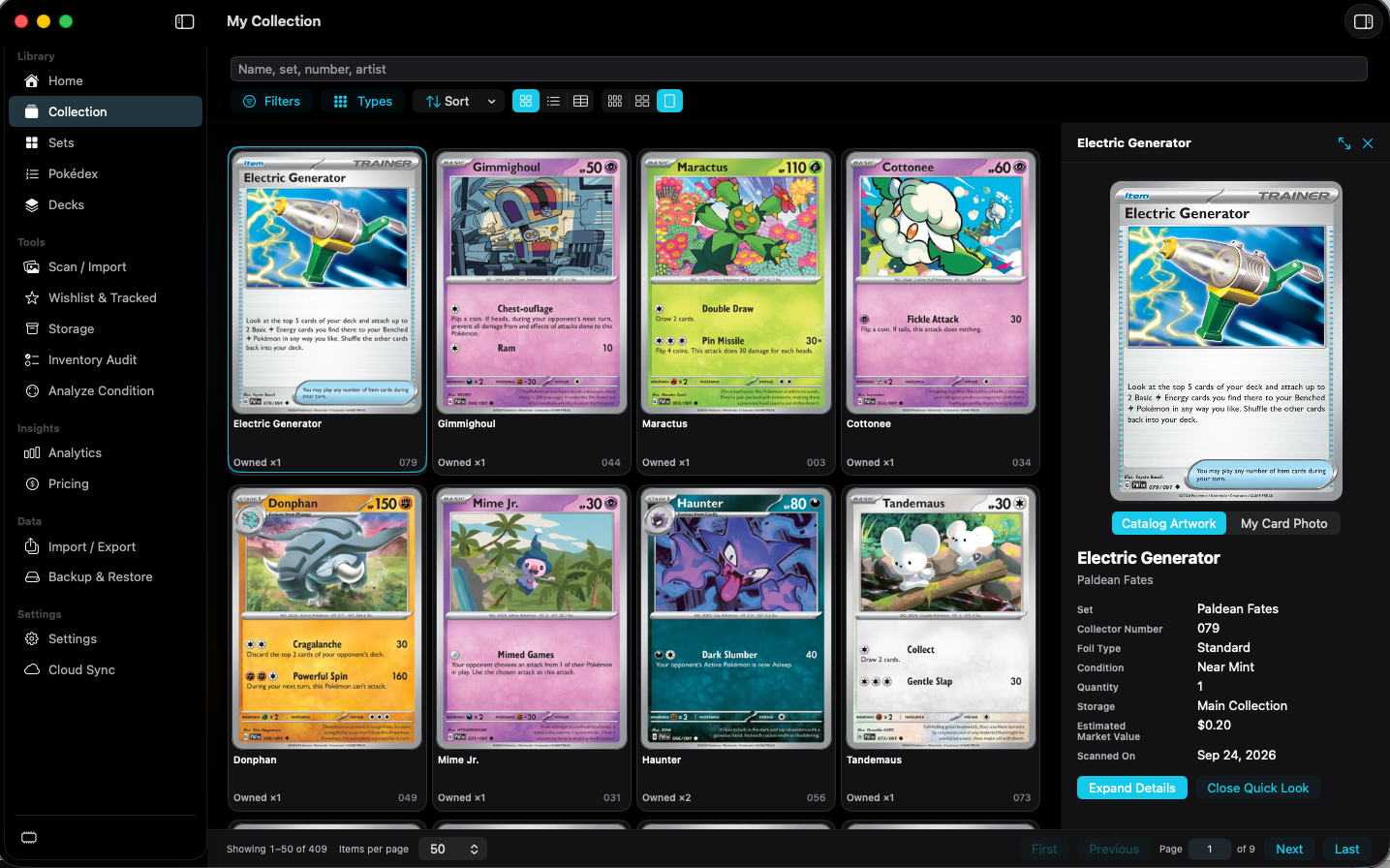
shot desktop-collection-inspector · seq 3 · assets/screenshots/original/desktop/0003.png
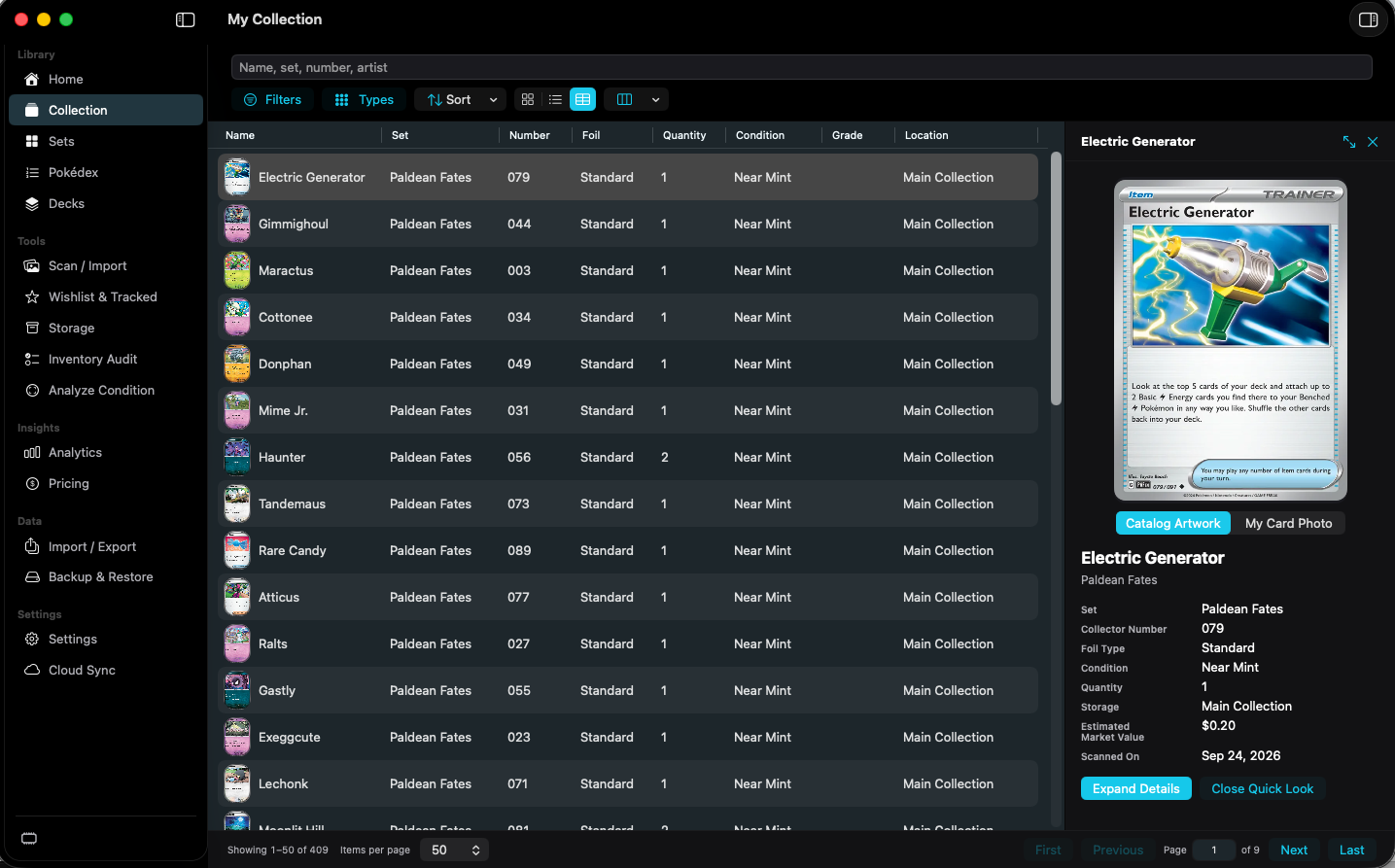
shot desktop-collection-table · seq 4 · assets/screenshots/original/desktop/0004.png
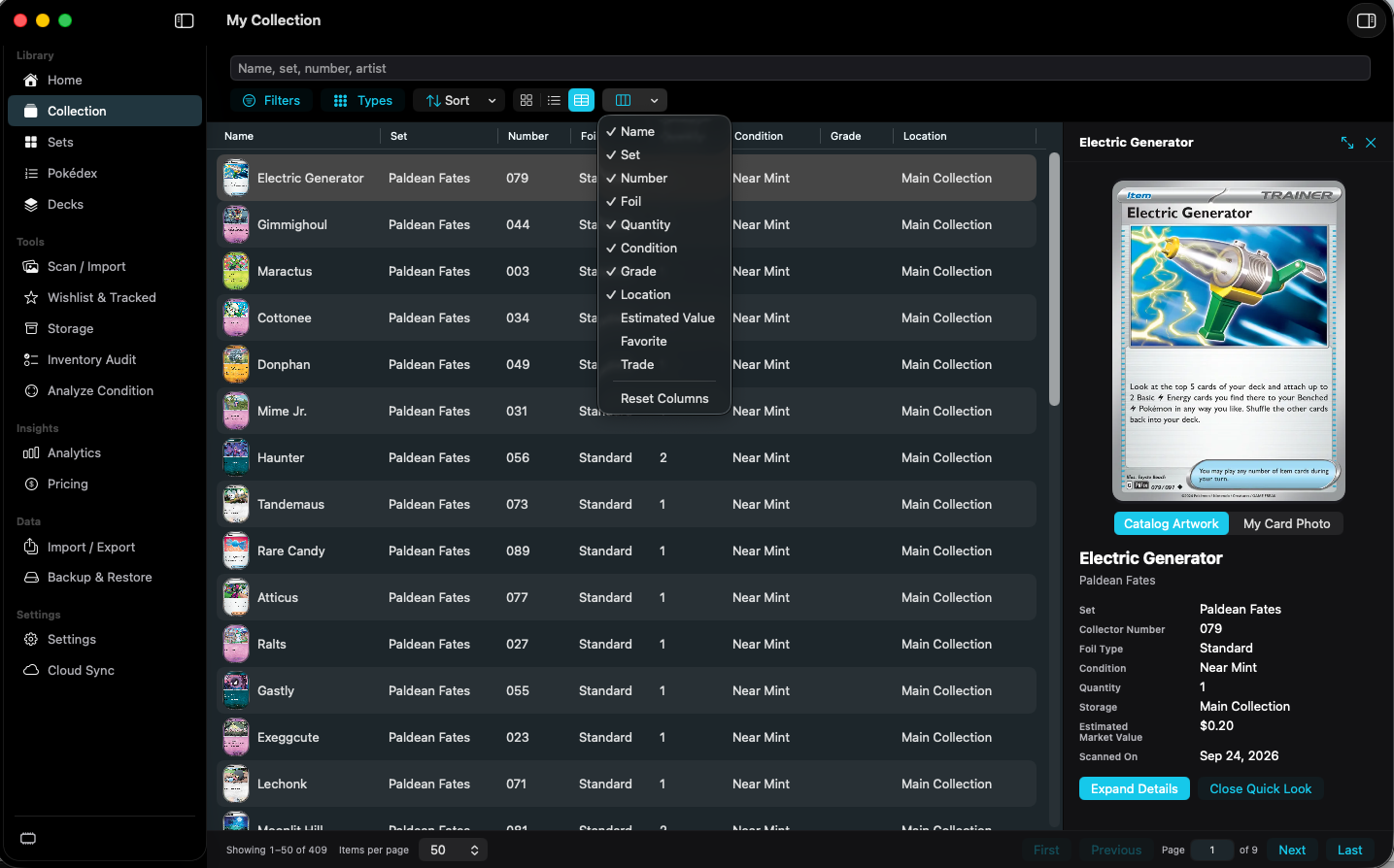
shot desktop-collection-columns · seq 5 · assets/screenshots/original/desktop/0005.png
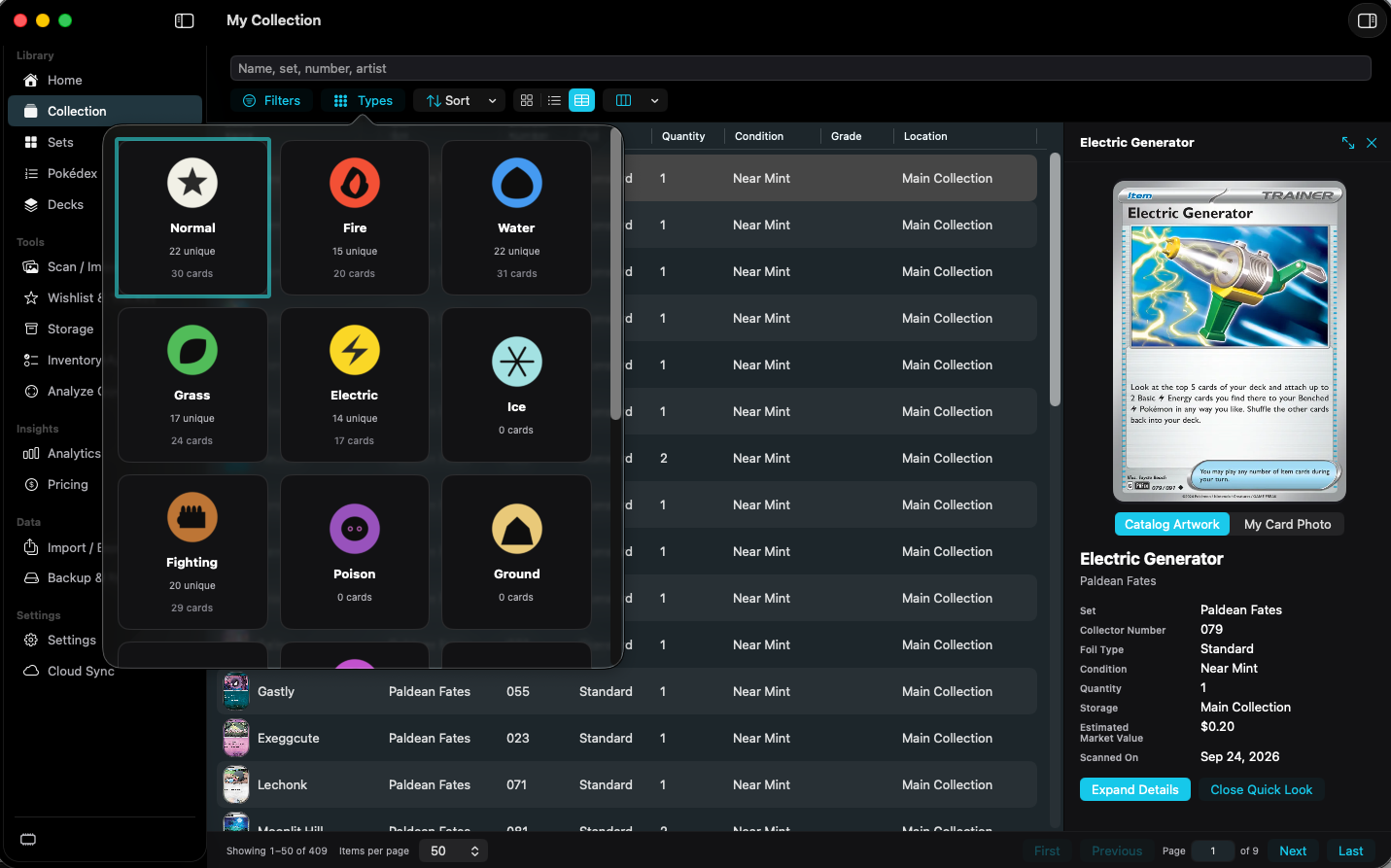
shot desktop-collection-types · seq 6 · assets/screenshots/original/desktop/0006.png
Additional platform screenshots will be added as this guide is expanded.
Narrows Collection by name, set, number, or artist.
The placeholder lists those four fields. Clear the text to stop filtering on it.
Opens collection filters.
The menu contents were not captured.
Not fully verified in the capture.
Opens an energy-type panel.
Each type shows unique cards and total cards. The capture shows Normal, Fire, Water, Grass, Electric, Ice, Fighting, Poison, and Ground. The result of choosing a type was not captured.
Not fully verified in the capture.
Changes collection order.
The menu contents were not captured.
Not fully verified in the capture.
Switches grid, list, and table, and sets grid size.
Grid and table are both visible in the capture. List is one of the three layout controls. Grid sizes are small, medium, and large.
Chooses table columns.
Check a column to show it. Reset Columns restores the default set. The menu lists Name, Set, Number, Foil, Quantity, Condition, Grade, Location, Estimated Value, Favorite, and Trade.
Moves through collection pages.
Shows the current range, items per page, First, Previous, a page field, Next, and Last.
Shows the selected card beside the list.
Includes Catalog Artwork, My Card Photo, ownership fields, Expand Details, Close, and Quick Look. Quick Look's open state was not captured.
Not fully verified in the capture.
Your collection, not just a card list.