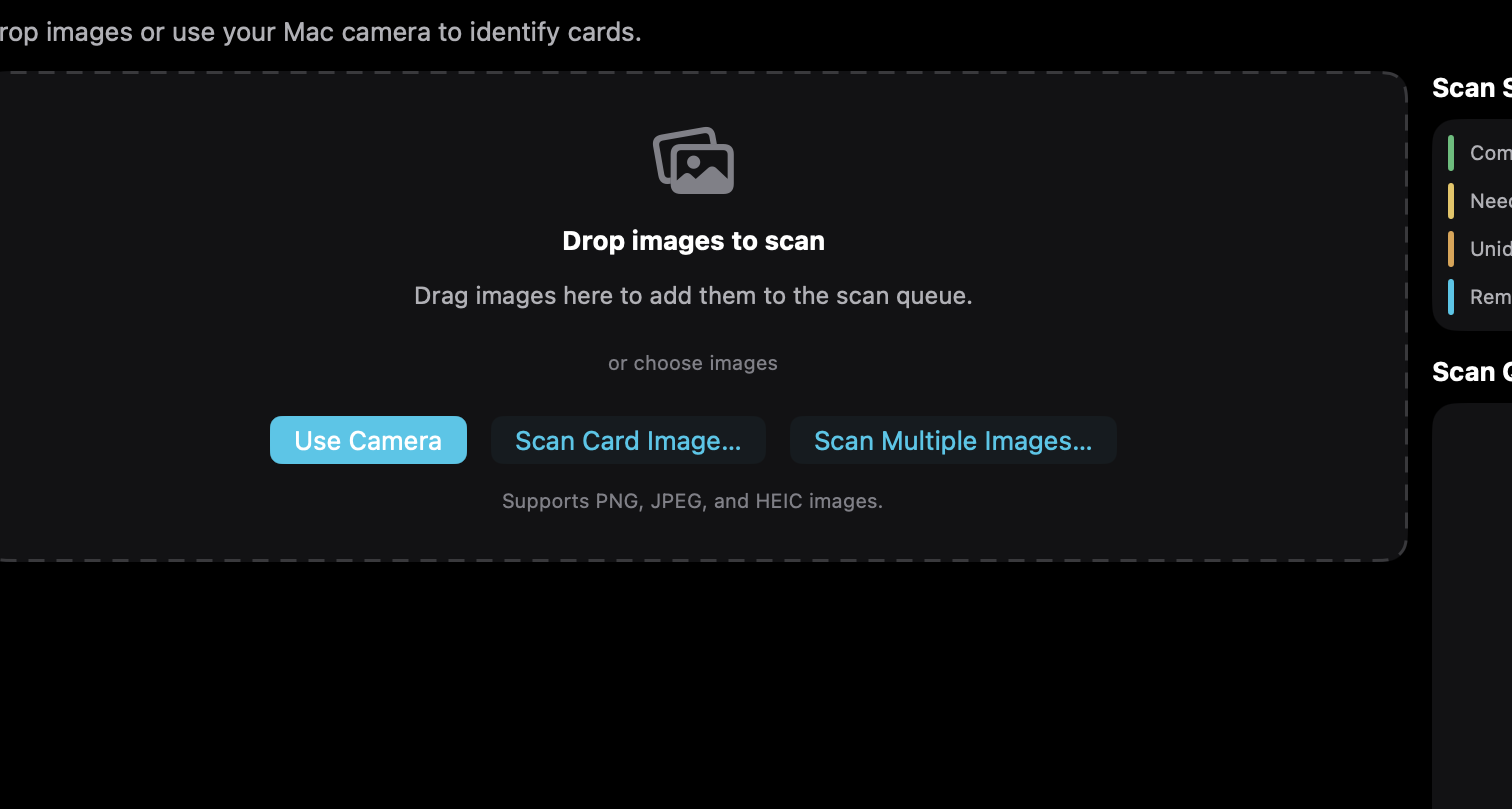
Use a supported camera or an existing card image to begin identifying a card against the local catalog. Scott’s TCG Binder processes the image, presents the recognition result for review, and lets you confirm the card before it becomes part of the collection.
Additional platform screenshots will be added as this guide is expanded.
How a card is added
Capture or import. Take a card photo with a supported camera or choose an existing image. On a Mac that can be a built-in camera, a USB camera, Continuity Camera, or a PNG, JPEG, or HEIC file. On iPhone and iPad it is the back camera or a photo from the library.
Recognition. The application analyzes the card against available recognition information and catalog data.
Review. Confirm that the identified Pokémon, set, card number, artwork, and printing are correct. Other matches are available when the first candidate is not the card you meant.
Add or increase quantity. Accepting the match adds a collection record or increases the quantity of a compatible card you already own, following the collection’s duplicate rule.
Continue the queue. Move to the next card. Completed, needs-review, unidentified, and remaining counts stay with the queue.
Key capabilities
Cameras
Settings → Camera lists every available device. Continuity Camera entries use the device name plus “ — Continuity Camera”. Built-in and USB cameras use the name macOS reports. The preferred device is a Continuity Camera when one is connected, then the Mac’s built-in camera.
Files
Drop images, or choose Scan Card Image… or Scan Multiple Images…. PNG, JPEG, and HEIC are accepted.
iPhone and iPad
The Scan tab offers Open Camera and Choose Photo. There is no device picker. The back camera is used. Choose Photo remains available when the camera is off or the device has no camera.
Visual walkthrough
Scan / Import
The Mac workspace says Drop images or use your Mac camera to identify cards. Use Camera opens the live scanner. Scan Card Image… and Scan Multiple Images… import files. The queue can be reviewed, retried, or removed. Review shows Your Image beside Catalog Match, with This Is My Card, Other Matches, and Card Not in Catalog. Capture is manual: Capture Now on the Mac, or the shutter on iPhone and iPad. There is no auto-capture and no in-app network camera.
Mac
Capture a card or import an image, then review the catalog match before adding it.