Catalog sync
Shows card, set, and series counts for both devices.
 Scott's TCG Binder
A Mac can share its Pokémon catalog with a trusted iPhone on the local network. Collection sync on that path does not require iCloud.
Mac
shot desktop-settings-general · seq 23 · assets/screenshots/original/desktop/0023.png
iPhone
shot iphone-settings · seq 123 · assets/screenshots/original/iphone/settings.png
Additional platform screenshots will be added as this guide is expanded.
Shows card, set, and series counts for both devices.
Shows paired device, last sync, collection items, wishlist items, and tracked sets.
On the Mac this is Settings → iPhone Catalog. Local Catalog Sharing is a checkbox. The desktop capture compares Mac and iPhone catalog counts and dates. Actions include Connect iPhone, Send Catalog to iPhone, Prepare Snapshot, Sync Collection Now, and Disconnect Device. The page states that iCloud is optional. On iPhone the matching controls are in Settings: Catalog Source can be Mac Only, with Update from Mac, Connect to Mac, and a paired-device collection sync that does not require iCloud.
Mac
shot desktop-settings-general · seq 23 · assets/screenshots/original/desktop/0023.png
iPhone
shot iphone-settings · seq 123 · assets/screenshots/original/iphone/settings.png
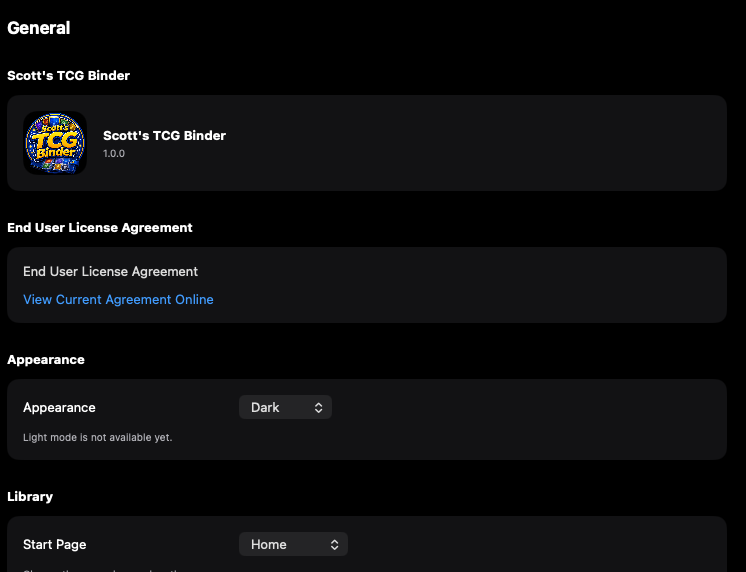
Appearance and the start page are app-wide defaults.
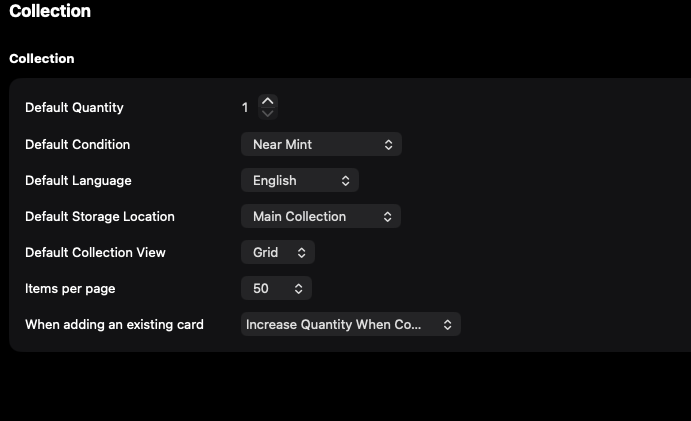
Defaults apply when a card is added, including quantity and condition.
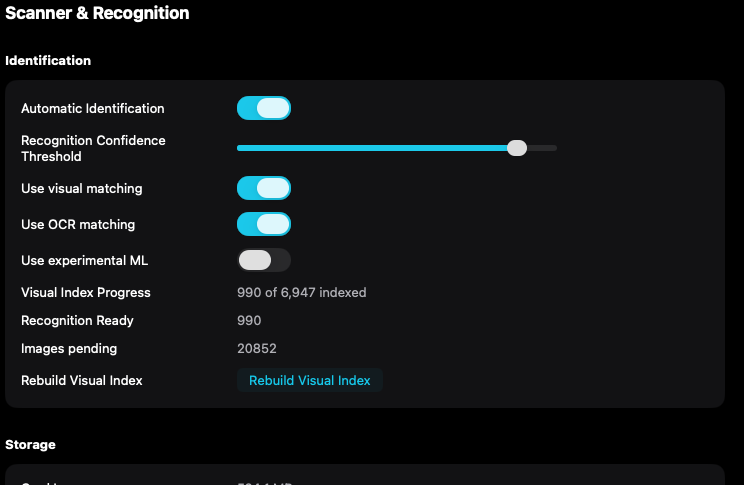
Visual matching and text matching can be reviewed before a scanning session.
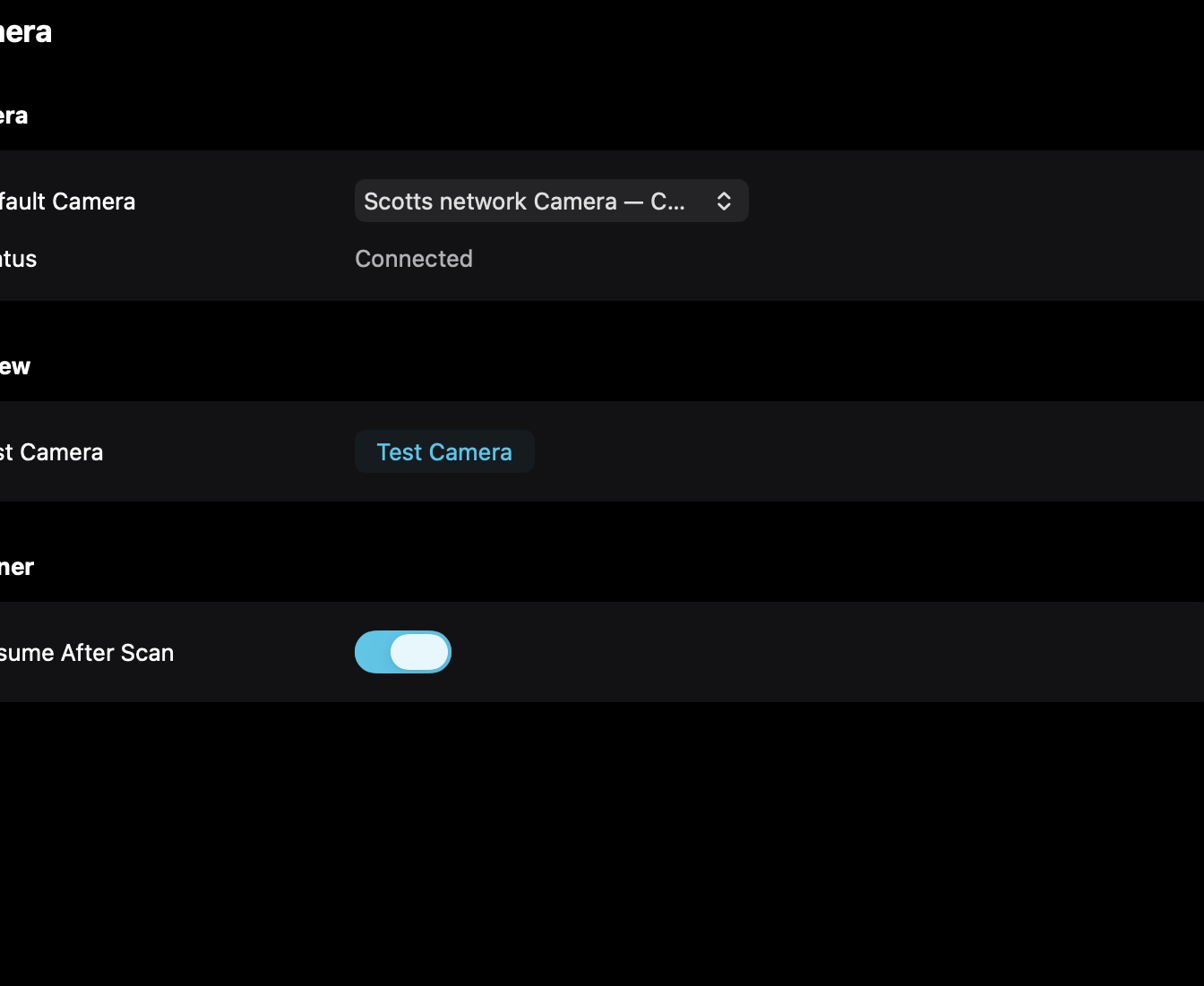
The camera list uses the device name macOS reports, including Continuity Camera.
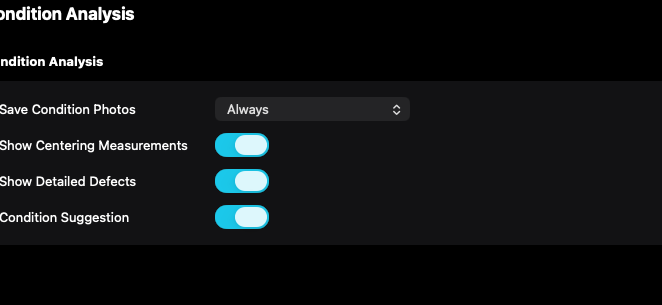
A condition suggestion is separate from the condition saved on the collection record.
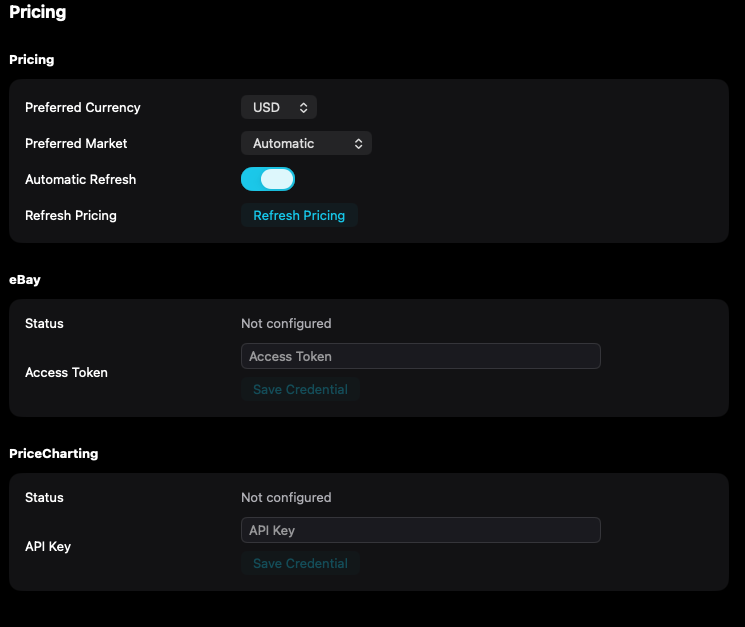
Currency, market, and provider credentials control where available prices come from.
Mac, iPhone, and iPad share the same collection model. Each platform presents those records in a layout that fits its screen.
Settings opens as a sheet. There is no Continuity Camera list on this screen.
Operational steps, controls, and the annotated screen.